
PM5 / SETUP GUIDE
Set up your machines once. Then get racing.
Connect your Concept2 PM5 machines: browser requirements, Bluetooth pairing, machine setup, READY checks and troubleshooting.
Before you start
- A Windows PC or Mac with Bluetooth and Chrome or Edge. Safari and Firefox cannot connect PM5s in this app.
- PM5-equipped RowErg, SkiErg or BikeErg machines, awake and within range. Test your hardware before your event.
- Open the site over HTTPS. A big screen or projector is recommended for racing.
- Internet and a venue account are required for Multi-Venue and leaderboard submission.
- 01
Wake up the PM5
Open its connection screen (Connect on recent versions). Menu labels vary by firmware.
- 02
Add the machine
Open Machines and select “+ Ajouter un erg” (Add Erg).
- 03
Select the PM5
Your browser opens the Bluetooth picker. Choose the matching PM5.
- 04
Name it
Check the sport and station, then name it: ROW 1, SKI 2, BIKE 1.
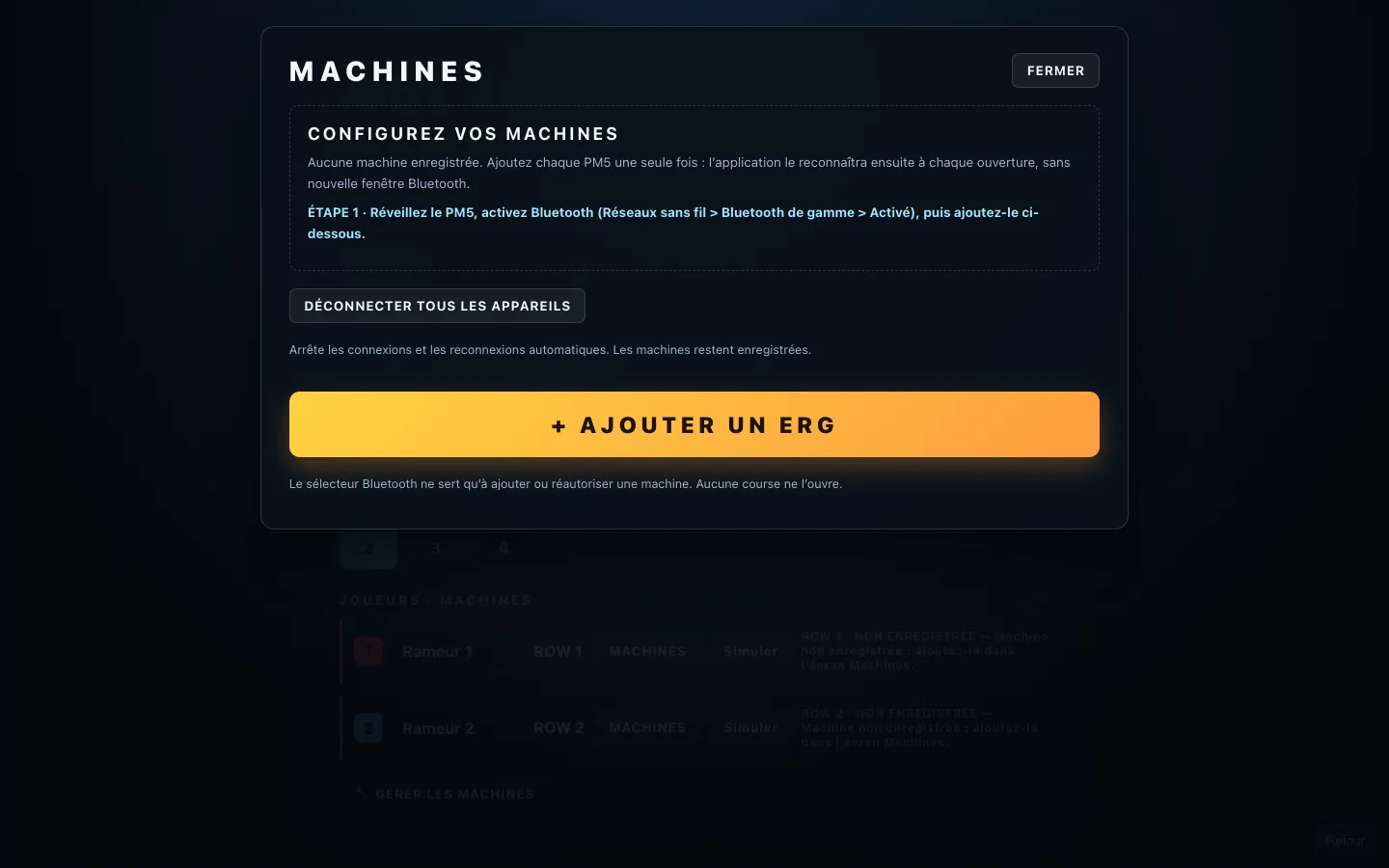
Screenshots show the current French-language product interface.
Open MachinesInitial pairing normally only needs to be done once per computer, browser profile and site address. For future sessions, wake up your PM5s and enable their connection. A new computer, browser, profile or site address requires permission again. If your browser cannot restore permitted devices, use “Réautoriser” (Reauthorize).
All READY? Time to race.
Wait for every required machine to show READY. Choose the sport, distance, participants and mode, then start. In Multi-Venue, each venue uses station 1 for each sport and must confirm it is ready.
Beta limitation: the hosted Local mode has no phone remote. Control stays on the computer. Multi-Venue has its own control page.
Connection trouble?
PM5 not visible?
Wake it up, open its connection screen and move it closer to the computer. Check that computer Bluetooth is enabled.
Connected elsewhere?
Disconnect the PM5 from the other app or device, then try again.
Permission missing?
In Machines, select the device and choose Réautoriser (Reauthorize). Choose the same PM5; its serial number is checked.
Machine offline or asleep?
Wake up the PM5 and enable its connection. Wait for READY before starting.
Saved machines not rediscovered?
Your fleet stays saved even if the browser cannot restore Bluetooth permissions. Reauthorize the machines. The README also describes an experimental Chrome getDevices setting; availability depends on browser version.
New computer or browser?
Add the PM5s again. Permissions do not transfer between profiles, computers or site addresses.
FAQ / PM5
Do I need a PM5?
Yes. The game uses PM5 data over Bluetooth. PM3 and PM4 support is not offered.
Which browser should I use?
Chrome or Microsoft Edge on a Windows PC or Mac with Bluetooth. Safari and Firefox cannot connect PM5s in this app. Allow Bluetooth access when your browser asks for permission.
Do I need to reconnect my machines every time?
Pairing is normally remembered for the same computer, browser profile and site. Wake up the PM5s and enable their connection. If permissions are missing or your browser cannot restore them, use Réautoriser (Reauthorize).
Your next race starts here.
Bring your athletes. Wake up your PM5s. Jump into the beta.
Try the beta